

Step 1
Verified starting point
Open Settings → Localization. Content languages, status counters, search, status/content-type filters, AI translate missing, Mark reviewed, and Publish are on this screen.
- English is the default content language
- AI translation can be unavailable when the plan or monthly budget does not allow it
Step 2
Enable Arabic content
Go to Settings → Localization. Under Content languages, enable Arabic. Use the record filters and search to move through categories, items, modifiers, and menu labels that are missing Arabic copy.
- Create the source menu content before translating it
- Language availability is separate from a browser's current display language
Step 3
Generate and review translations
Select AI translate missing to draft untranslated fields, or enter the Arabic text manually. Review terminology, prices, proper names, and modifier meaning in context, then select Mark reviewed and Publish for approved records.
- Do not publish an AI draft without a fluent review
- Keep brand and product names consistent across categories and items
Step 4
Test the real RTL journey
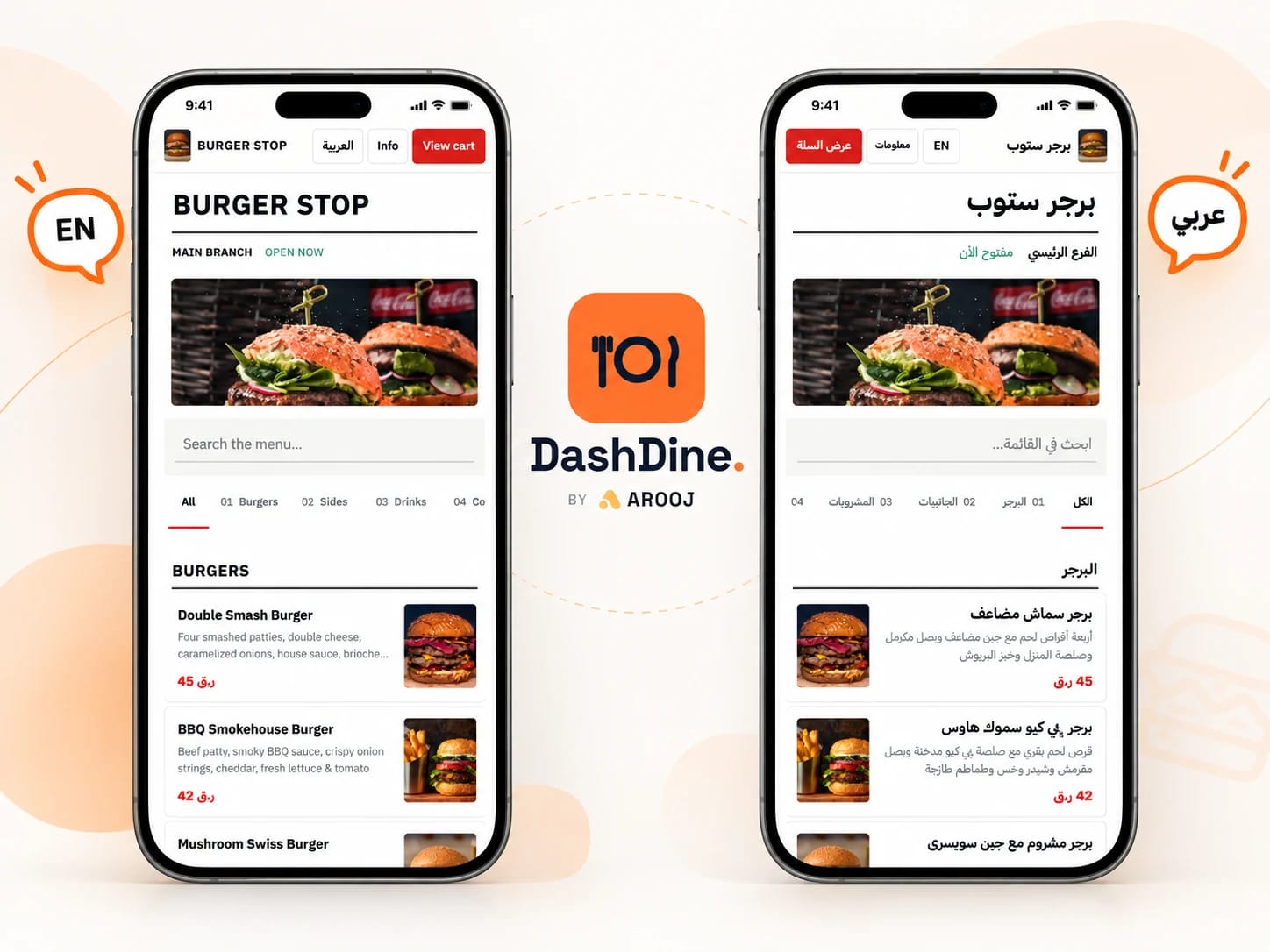
Open the public storefront, switch to العربية, and test category navigation, an item dialog, modifier selection, cart, checkout, and order status. Fix truncation or ambiguous copy in Localization and republish it.
- Test on a narrow phone screen
- Confirm numbers, currency, direction, and back arrows remain understandable