

Photos or PDF
Import menu images or a PDF of up to 50 pages from the menu you already use.
AI menu import
Upload photos or a PDF. DashDine prepares the categories, dishes and prices so you can review them instead of entering everything from scratch.
14-day Pro trial. No credit card required.Talk to our team
Restaurants using DashDine
 U Cafe
 Sabroso by Nouga
 Baab Al Rayyan Kitchen
 Kebab Khodmooni
 Lalezar
 The Ivy
Easy setup
Import it, choose how your guests and staff will order, and place a test order before you go live.
Choose clear photos or a PDF of the menu you already use.
Check categories, dishes and prices before anything is saved.
Add images, choices, translations and availability, then publish when it is ready.
A faster starting point
Review every extracted item and price before saving. Then add photos, translations, choices and availability from the normal menu workspace.

Import menu images or a PDF of up to 50 pages from the menu you already use.
AI groups the menu into editable categories and items instead of creating a fixed image menu.
Check extracted prices and correct anything before the catalog is saved or published.
See the estimated AI usage cost before starting the import.
How it works
No matter where an order starts, the details stay connected to the team preparing and serving it.
Guests or staff choose the items and extras.
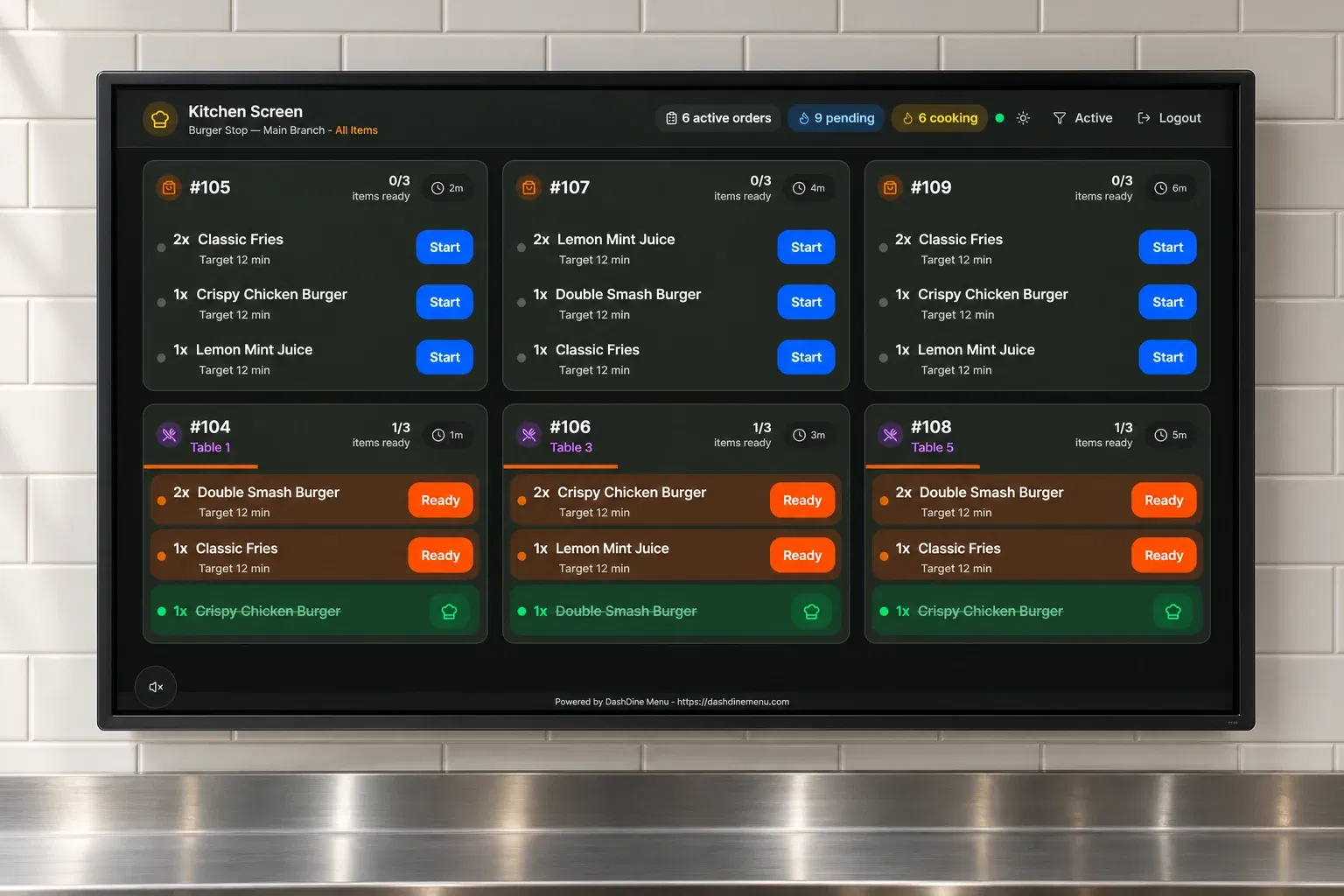
Your team follows the order with its notes and table details.
Track readiness and handoff. Record payment collection separately.
Plans
Pro brings ordering and operations together. Growth includes the same features for three branches. Digital Menu is for browsing only.
A clear, branded menu for guests to browse.
49 QAR/month
Billed monthly
Smart ordering and operations for one branch.
149 QAR/month
Billed monthly
14-day free trial · no card required
Start free trialThe same ordering platform, across your branches.
299 QAR/month
Billed monthly
Ordering and operations are included in Pro, Growth and the free Pro trial. Online payment fees are charged by your payment provider.
Before you start
Our Qatar team can help you choose the right setup for your restaurant.
No. Digital Menu lets guests scan and browse without a cart or checkout. On Pro, Growth or the Pro trial, guests can also place table orders while service is open.
No. The QR code opens the menu in their phone browser. Guests can switch between English and Arabic when both languages are enabled.
No. The same codes open the updated menu. Change items, prices, photos and availability from your account.
Yes, on Pro, Growth or the Pro trial while service is open. Online payment is available after connecting and enabling your restaurant’s SkipCash account. Provider processing fees apply.
Ways to order
Start with QR, online, staff or self-service ordering. Each channel uses the same menu and sends orders into the same restaurant workflow.
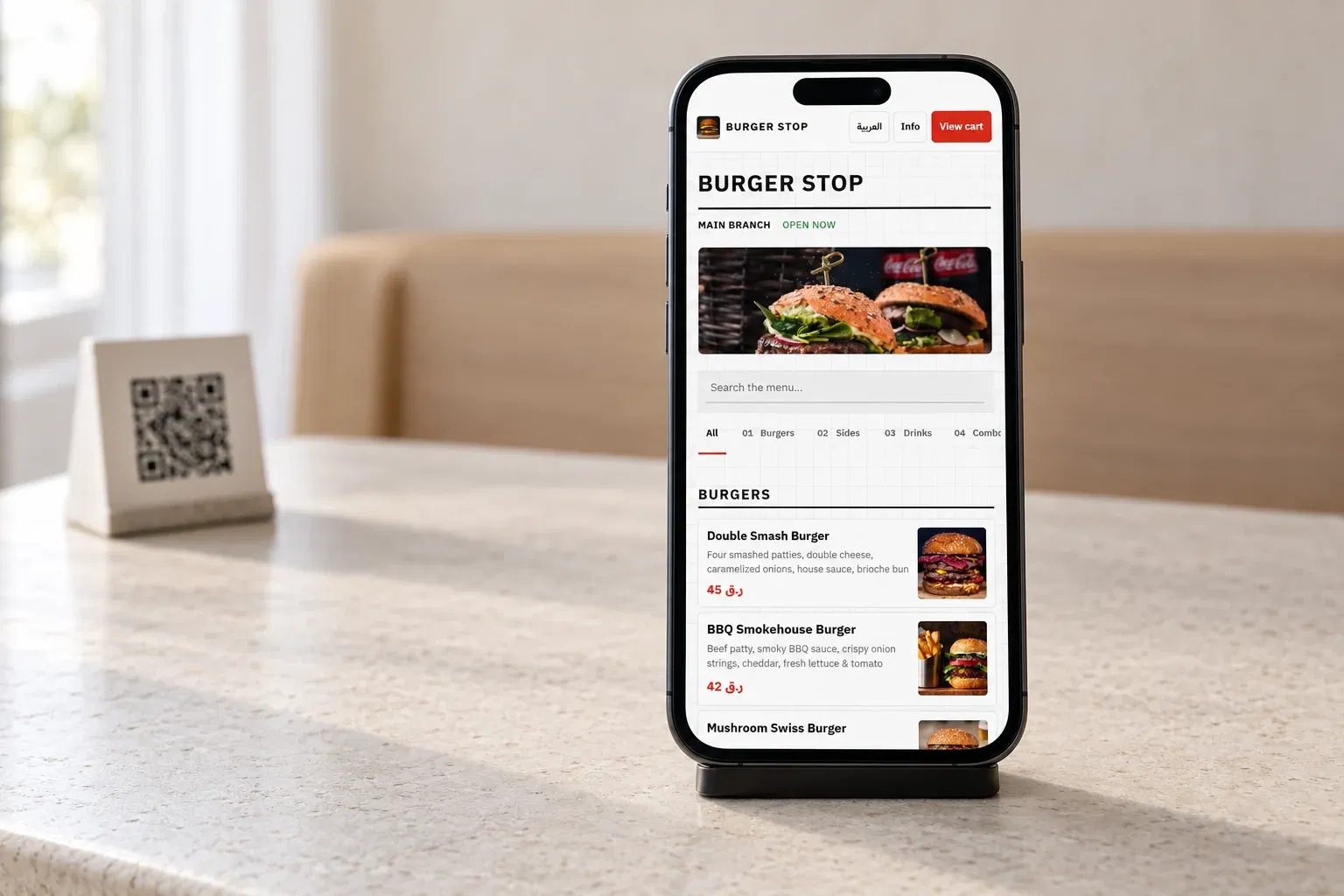
Guests browse and order from their phone.
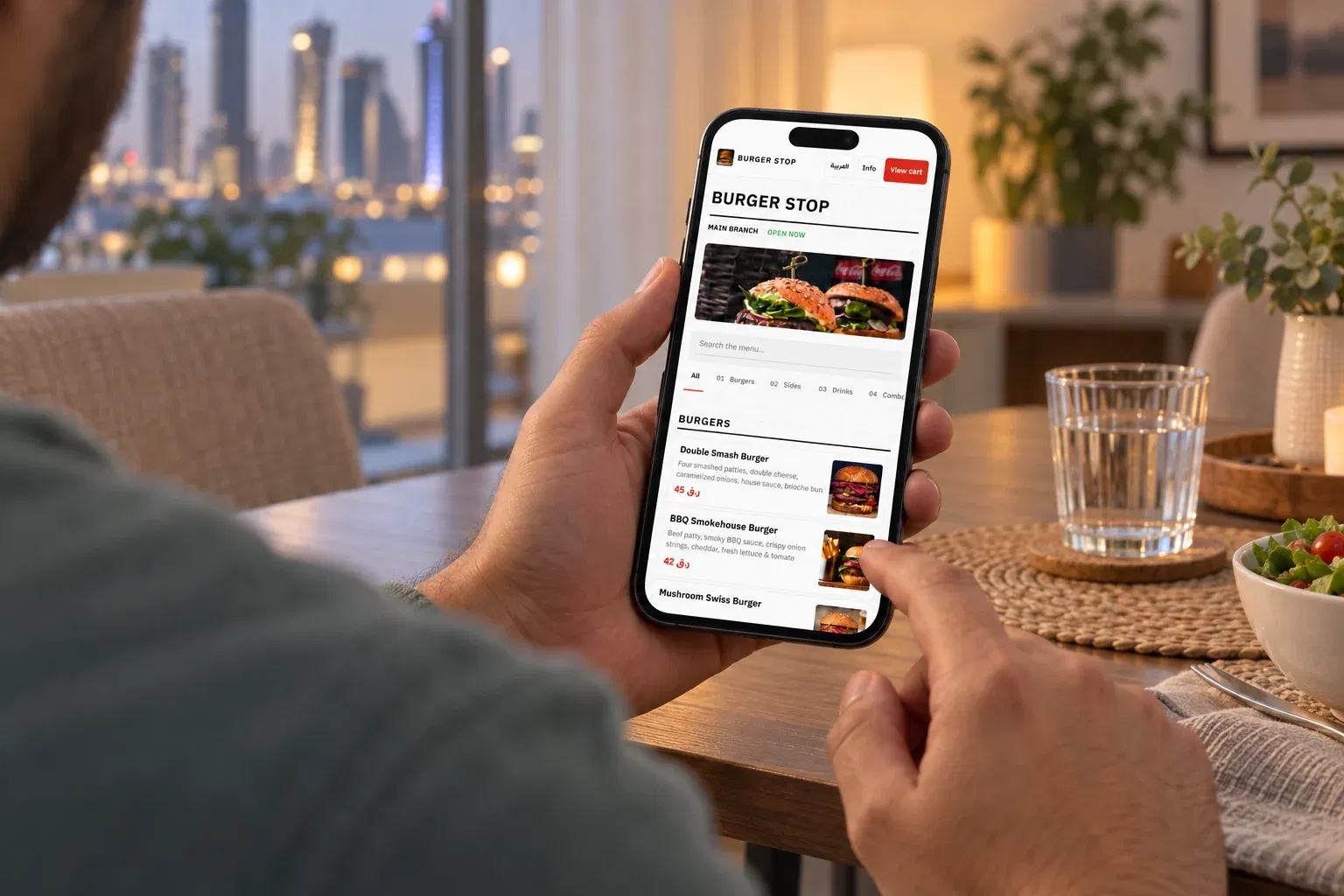
Your link for pickup, curbside and delivery.
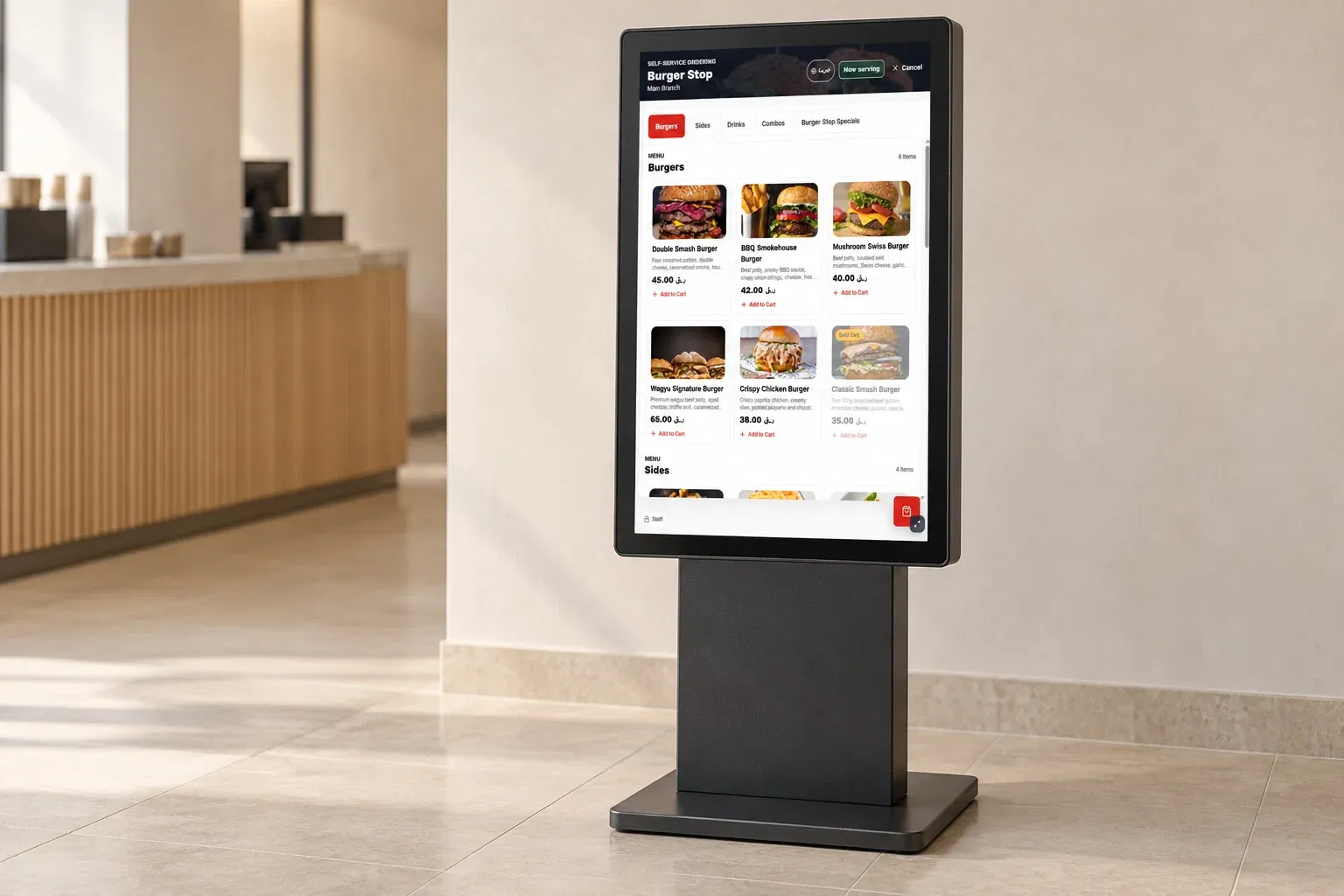
Self-service ordering on dedicated devices.
Take counter and table orders with the same menu your guests use.
Talk to our team
Leave your phone number and email. Our team will contact you and help you choose the right DashDine setup for your restaurant.