
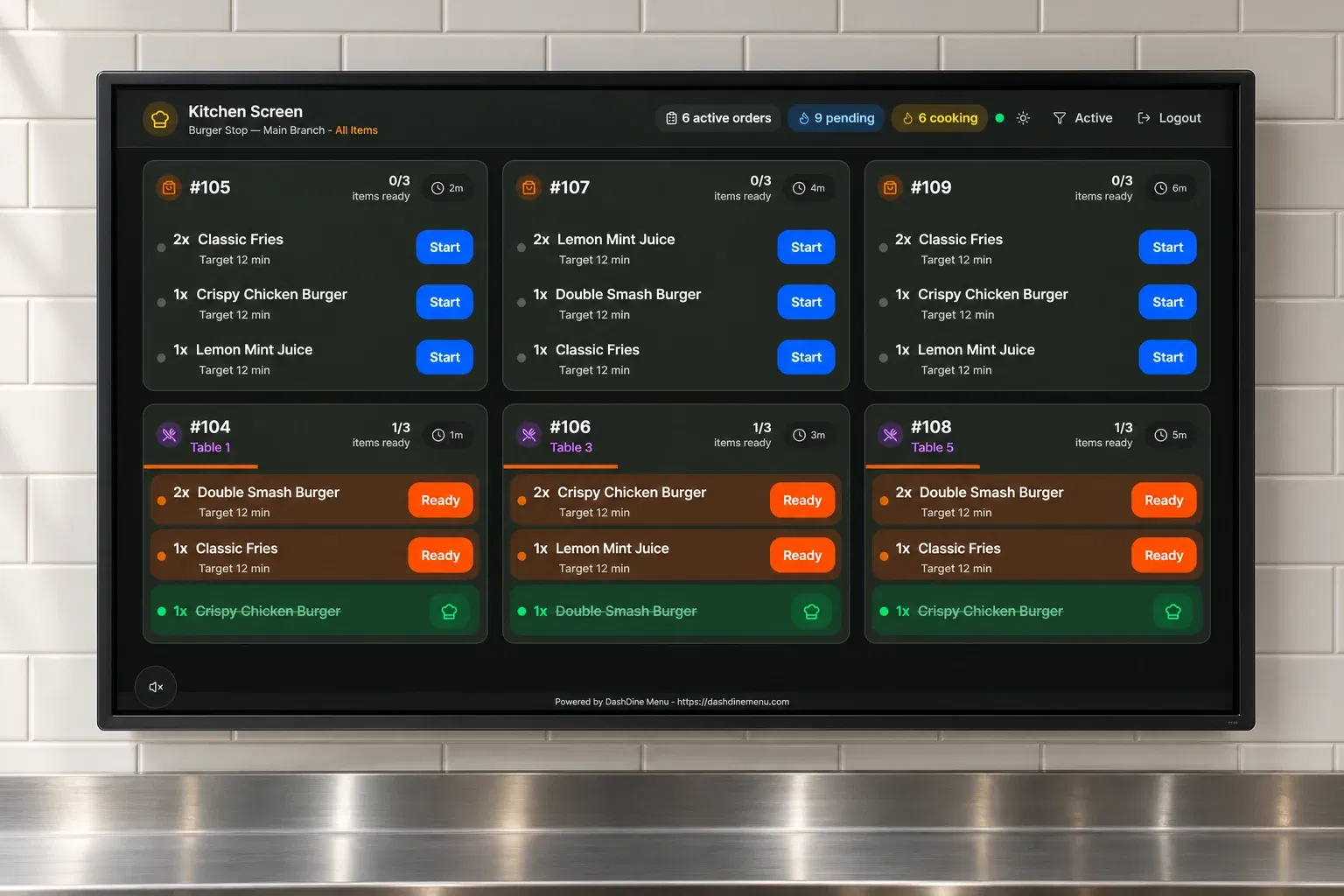
Live order queue
See new, preparing and ready orders without copying details onto another screen.
DashDine Kitchen
Give the kitchen a live queue with the items, choices, notes and timing needed to prepare each accepted order.
14-day Pro trial. No credit card required.Talk to our team
Restaurants using DashDine
 U Cafe
 Sabroso by Nouga
 Baab Al Rayyan Kitchen
 Kebab Khodmooni
 Lalezar
 The Ivy
Easy setup
Import it, choose how your guests and staff will order, and place a test order before you go live.
Group the categories and items each preparation screen should receive.
Sign in on the kitchen device and choose the branch or station.
Send an order, prepare it and mark it ready before live service.
A shared preparation view
Route work by station, follow preparation stages and notify the service team when an order is ready.
See new, preparing and ready orders without copying details onto another screen.
Keep modifiers, quantities and guest or staff notes attached to the preparation ticket.
Filter work by the categories and items assigned to each station.
Use kitchen screens with automatic ticket printing at the branch’s selected trigger.
How it works
No matter where an order starts, the details stay connected to the team preparing and serving it.
Guests or staff choose the items and extras.
Your team follows the order with its notes and table details.
Track readiness and handoff. Record payment collection separately.
Plans
Pro brings ordering and operations together. Growth includes the same features for three branches. Digital Menu is for browsing only.
A clear, branded menu for guests to browse.
49 QAR/month
Billed monthly
Smart ordering and operations for one branch.
149 QAR/month
Billed monthly
14-day free trial · no card required
Start free trialThe same ordering platform, across your branches.
299 QAR/month
Billed monthly
Ordering and operations are included in Pro, Growth and the free Pro trial. Online payment fees are charged by your payment provider.
Before you start
Our Qatar team can help you choose the right setup for your restaurant.
You can run it alongside your current system. DashDine POS supports counter ordering; automatic synchronization with an external POS is not included.
No. Preparation and fulfillment are independent from payment. Staff explicitly confirm collection when recording it, including through Collect & close.
Yes. Assign staff roles and allowed branches. Operational tools require the appropriate user permissions and an eligible plan.
Yes. Customer and staff orders share the same ordering workflow. Configure kitchen stations and printing, then open service before accepting orders.
Ways to order
Start with QR, online, staff or self-service ordering. Each channel uses the same menu and sends orders into the same restaurant workflow.
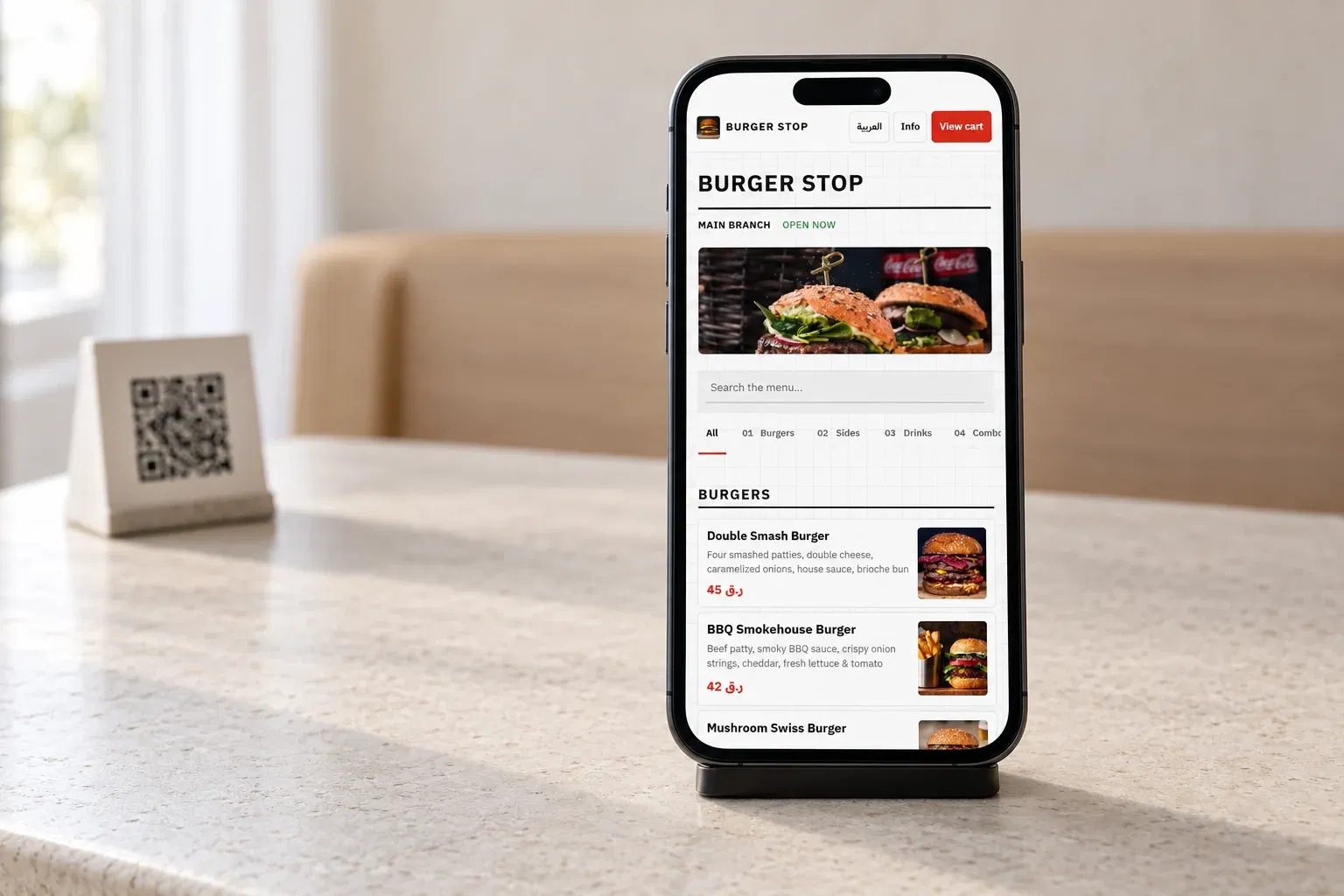
Guests browse and order from their phone.
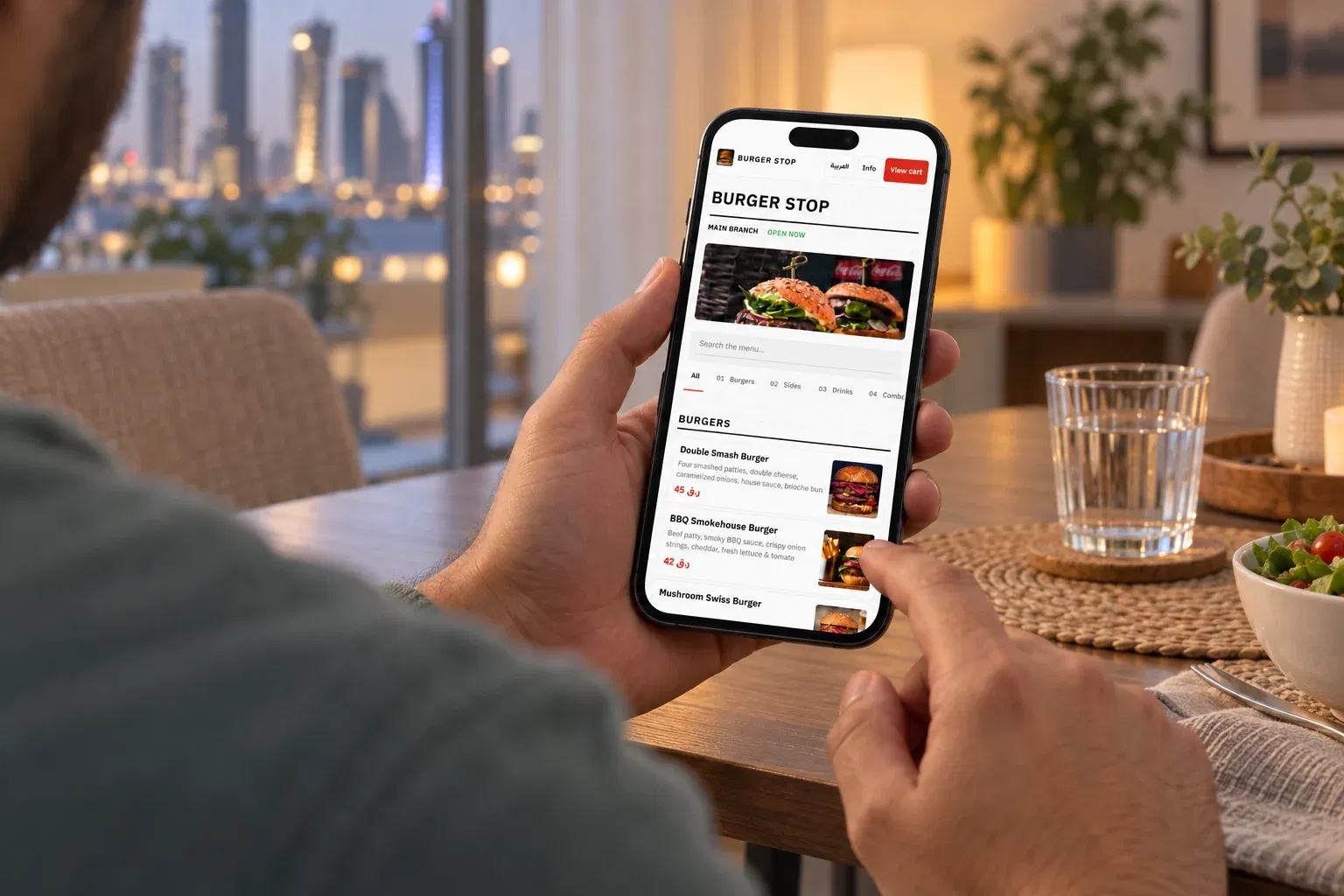
Your link for pickup, curbside and delivery.
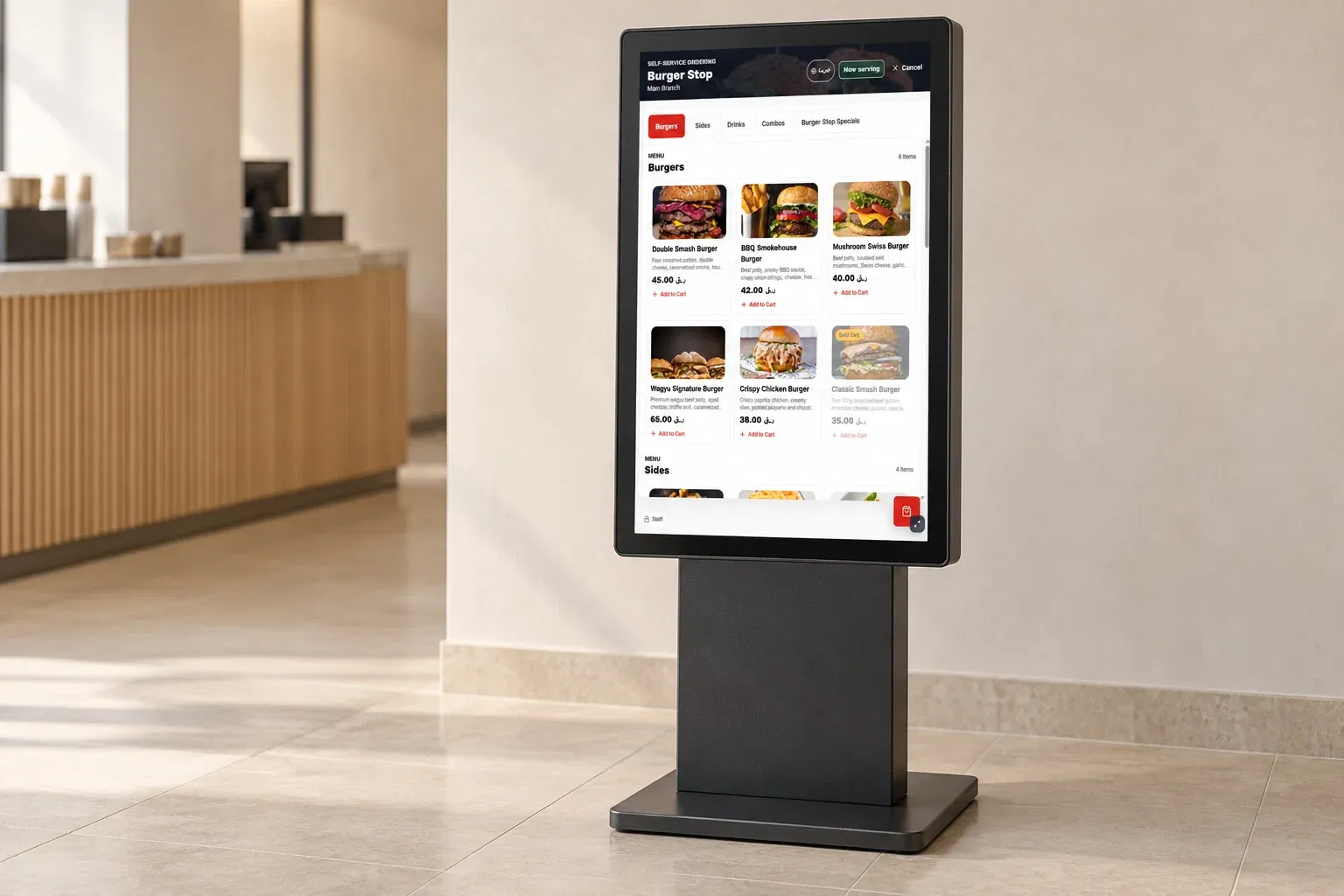
Self-service ordering on dedicated devices.
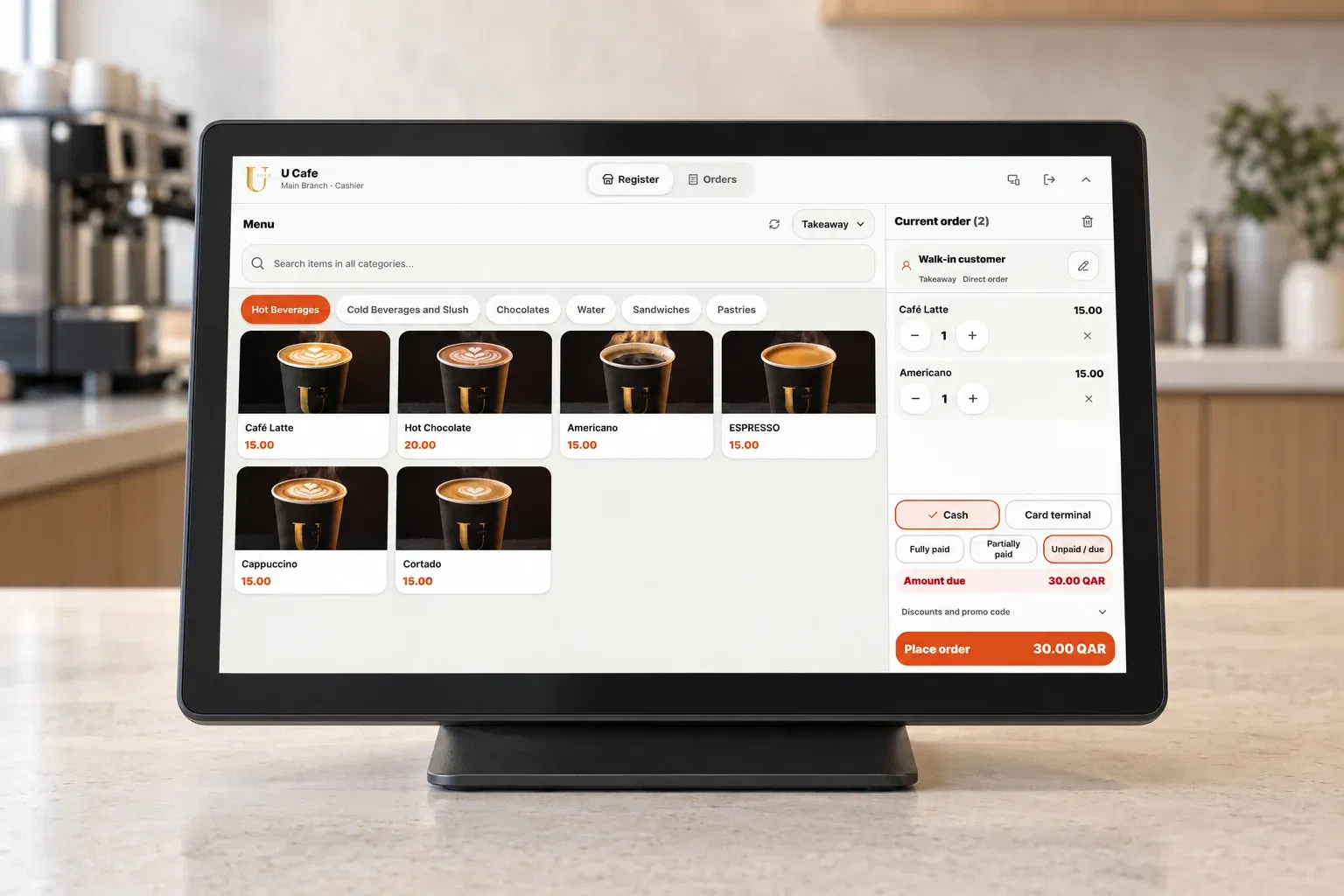
Take counter and table orders with the same menu your guests use.
Talk to our team
Leave your phone number and email. Our team will contact you and help you choose the right DashDine setup for your restaurant.